 previous
 home
home
3 dimensional scatter plots
- You can draw 3 dimensional scatter plots.
- The number allowed to draw the plots must not exceed 5.
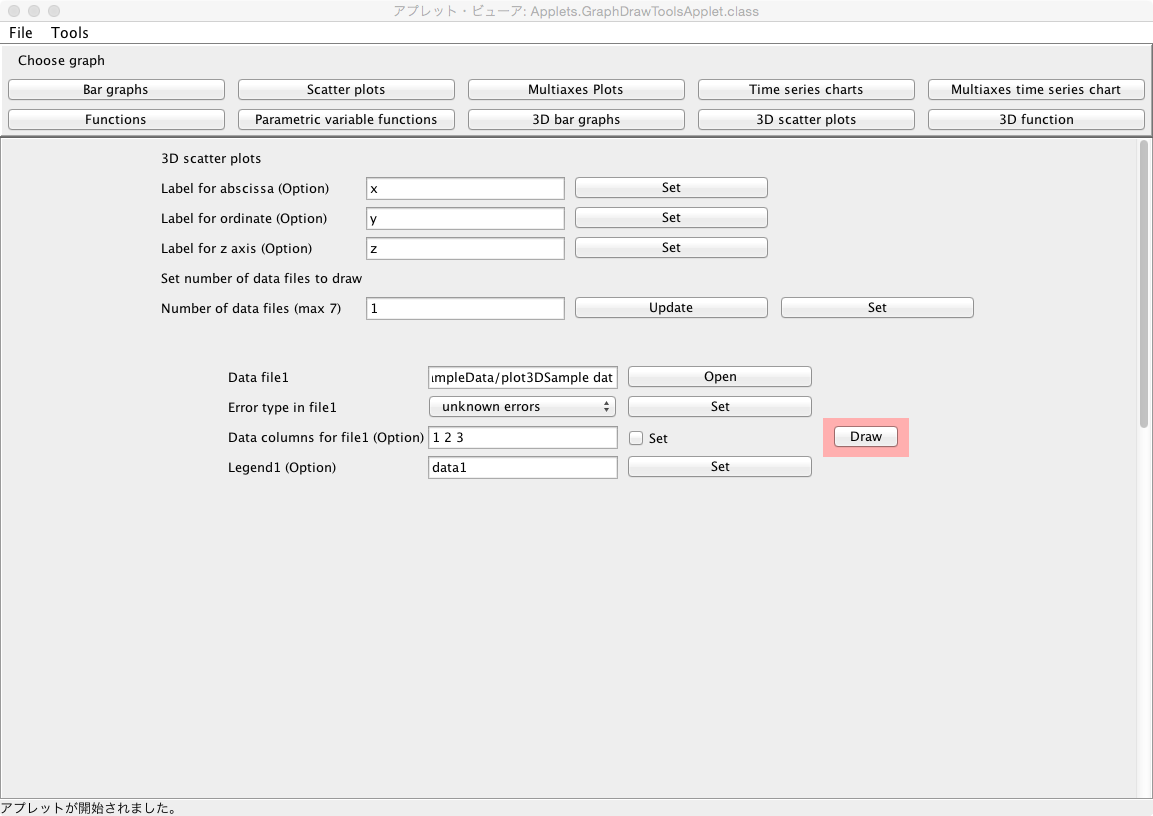
- To start, click "3D Scatter Plots" button on the applet or select
"3D Scatter Plots" item from Tools in the menu bar.

If you use the sample data,
click here, and save
it in the directory (or folder) specified in the user policy file.
When you draw the graph of the sample data,
- Click the "Set" button at the line "Number of data files (max 5)".
- Click "open" at the line "Data file1", and specify the data file
name saved according to the above instruction.
- When clicking the "Draw" button bellow, the graph of the
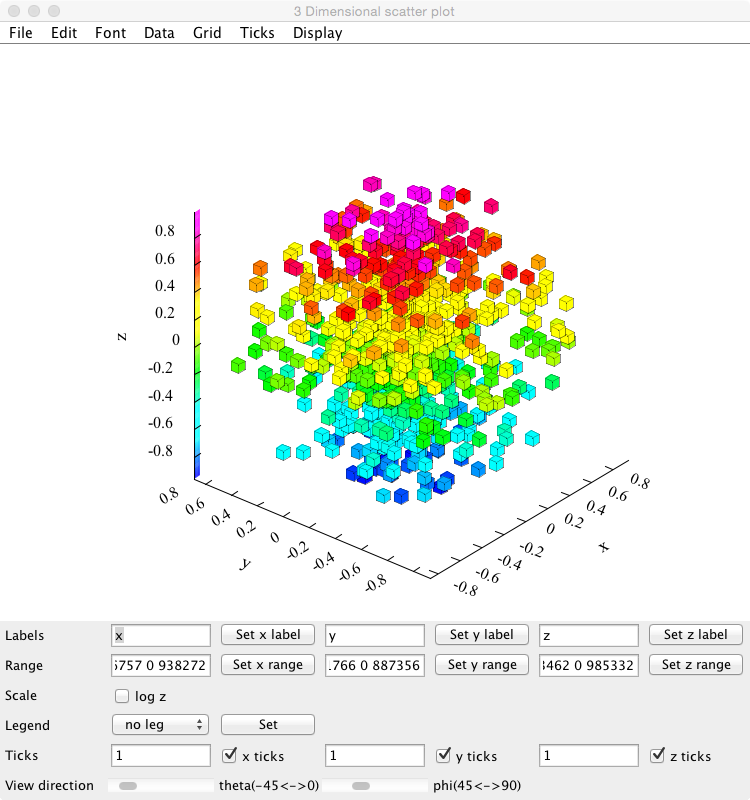
plot is displayed in another window.
Data
- Data must be inputted by normal width.
- When no errors are included in data, the data must be inputted in order of x, y and z which the values
are delimited by space or tab. Change the line, and input the data of the following row
similarly until the input of the last data ends.
| x1 | y1 | z1 |
| x2 | y2 | z2 |
| . | . | . |
| . | . | . |
| . | . | . |
| xn | yn | zn |
- When errors are included in data,
the data must be inputted in order of x, the error of
x (
 ), y,
the error of y (
), y,
the error of y ( ), z and
the error of z (
), z and
the error of z ( ) which are delimited by space or tab. Change the
line, and input the data of the following row similarly until the
input of the last data ends.
) which are delimited by space or tab. Change the
line, and input the data of the following row similarly until the
input of the last data ends.
| x1 |  | y1 |  | z1 |  |
| x2 |  | y2 |  | z2 |  |
| . | . | . | . | . | . |
| . | . | . | . | . | . |
| . | . | . | . | . | . |
| x2 |  | y2 |  | zn |  |
- In addition, you can use the table data form in the data file. You may
include the column data not used to draw the graph in the data file.
In that case, the specification of the column in the data file used to draw the graph is needed at the line "Data columns for file1(2, 3, ...)(Option)" in the following "Input" instruction.
Setting a data file
- The label for the x axis in the graph can be specified
at the line "Label for abscissa (Option)". Click the "Set" button after describing it.
- The label for the y axis in the graph can be specified
at the line "Label for ordinate (Option)". Click the "Set" button after describing it.
- The label for the z axis in the graph can be specified
at the line "Label for z axis (Option)". Click the "Set" button after describing it.
- Input a number of data files to be drawn at the line "Number
of data files (max 5)", and click the "Update" button. The number of
data files must not exceed 5.
- After that, click the "Set" button.
Inputs
- Click "open" at the line "Data file1" and specify the data file name.
- Select the error type of the data at the line "Error type in
file1" according to the errors of data and click the "Set" button.
- The columns in the data file to be used to draw the plot can be
specified at the line "Data columns for file1 (Option)". For
instance, when x data are put in the first column, y data in the
third column and z data in the fifth column in the data file, specify
"1 3 5", and check the "Set" box.
- The explanatory note (legend) for the plot can be specified at the
line "Legend1 (Option)". Click the "Set" button after describing it.
- The color of the plot can be selected at the
line "Data color of file1 (Option)". Click the "Set" button after
selecting it.
- Input similarly for the number of data files specified.
Outputs
- When the "Draw" button is clicked, the graph is displayed in
another window.
Graph window
- You can change the labels of x, y and z axis at the line "Labels". When a
suitable label is inputted respectively, and the "Set x label" button,
the "Set y label" button and the "Set z label" button are clicked,
the labels are changed.
- You can change the display ranges of x, y and z axis at the line
"Range". When a suitable range is inputted respectively (the
numerical values must be delimited by space), and the "Set x range" button,
the "Set y range" button and the "Set z range" button are clicked,
the graph that the display range has been changed is displayed again.
- You can change the scale of z axis from the linear to the log
scale at the line "Scale". When changing it to the log
scale, check the box . When releasing it, remove the check from the box.
- Explanatory notes (legends) for the graphs can be displayed at the position
specified. At the line "Legends", specify the position at which the explanatory notes are displayed, and click the "Set" button.
- Ticks can be put in x, y and z axis at the line "Ticks". The tick can be put
by inputting a suitable tick value (1 to 10) and clicking the "x ticks" button, the "y ticks" button and the "z ticks" button.
- To save a graph image, refer here.
Kazushi Neichi
Department of Business Administration, Tohoku Gakuin University